This is an old revision of the document!
Changing a password via a web interface
Goal
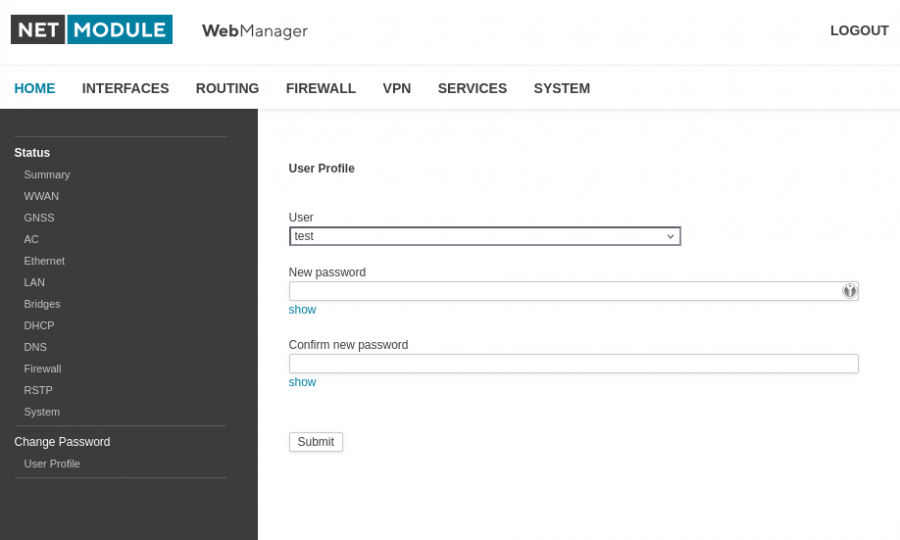
Under the “Home” tab on the router's web interface, you can reset the passwords for any additional users you've set up.
Prerequisites
NetModule Wireless Router with wireless connection
-
Not available for legacy products NB1600, NB2700, NB3700, NB3710
**
The wiki was tested with router software 5.0.0.104
**
1. Set up the SDK script on the router
In the first step, the SDK function is activated and further options are specified.
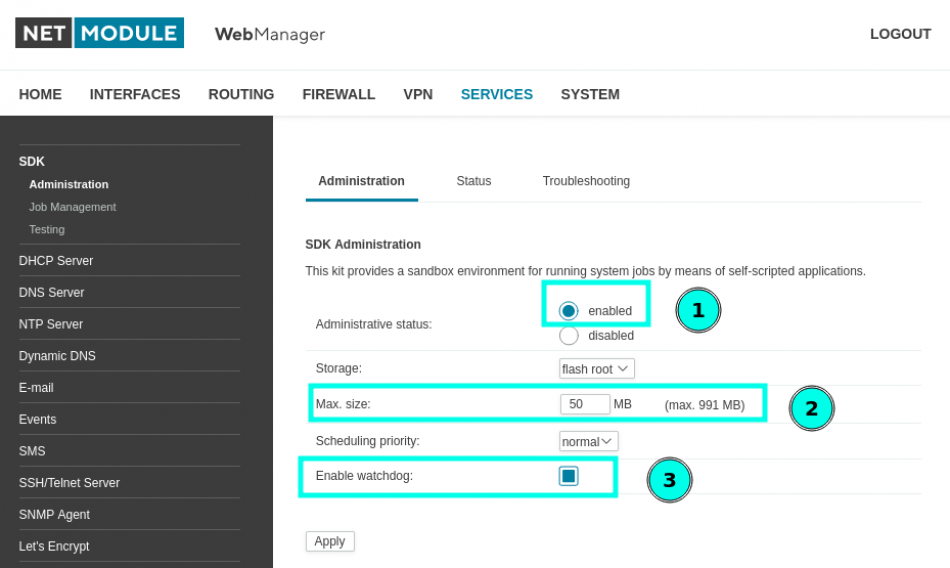
The function is activated under point 1.
Under
point 2, we free up memory for the execution of the script. For this SDK script, 50
MB is sufficient; only a few variables are stored temporarily for the execution of the program.
Under point 3, we activate monitoring to check whether the script is still being processed correctly. We use the router's core function in the program. Monitoring makes sense here.
In the second step, we store the SDK script in Job Management.
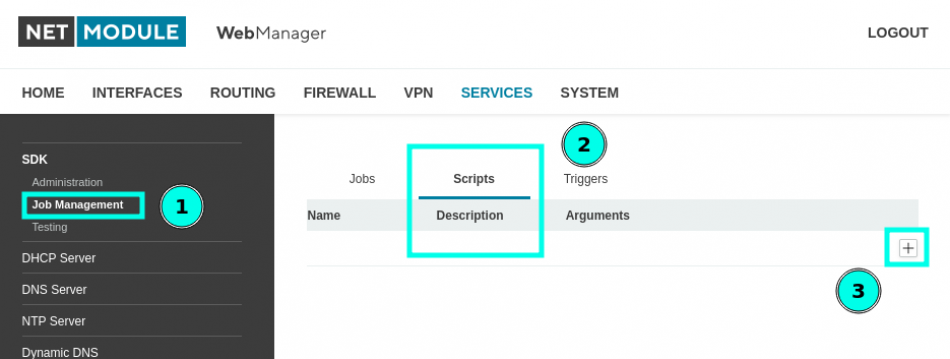
First, we store the SDK script under Job Management. Using the plus button under point 3, we add a script.
After pressing the plus button, a new window opens with settings.
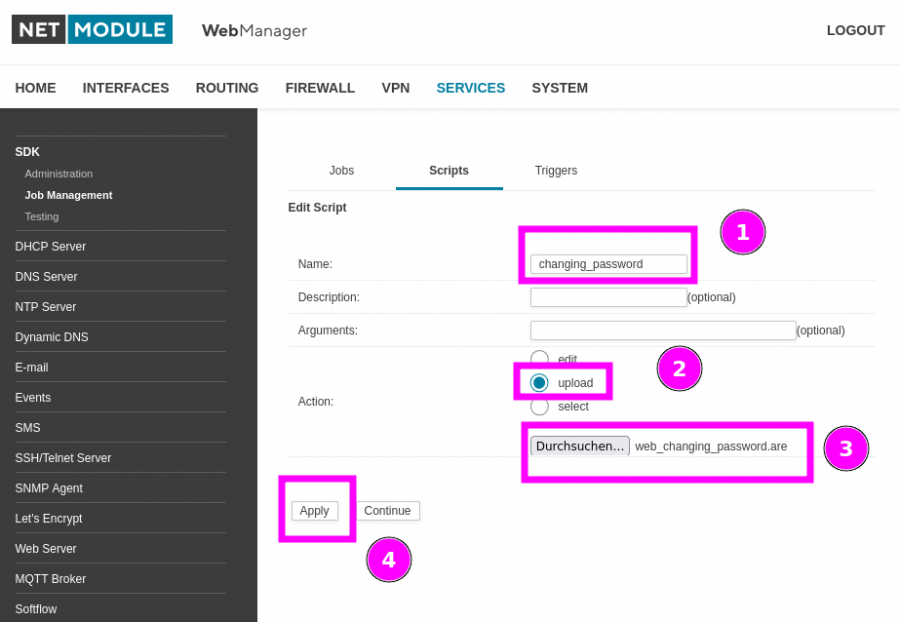
First, assign a name to the SDK process. In the second step, you can insert the SDK script using the “upload” function. You can open the script by clicking on the “show code” button in the WIKI and then download the “web_changing_password.are” file. Once you have saved the file on your computer, you can search for it in step 3 using Browse and select it. The last step, “Apply“, saves everything to the router.
The “web_changing_password.are” script can be downloaded via the “show code” link.
show code
- web_changing_password.are
nb_config_set("custom.var0=");
nb_config_set("custom.var1=");

ID = 1;
if (is_void(page = nb_page_register(ID, "User Profile", "Change Password"))) exit(1);

template entry {
   name; configvar; value; text;

   int entry(string n, c, t) {
      this.name = n;
      this.configvar = c;
      this.value = nb_config_get(c);
      this.text = t;
      return 0;
   }
};

string summary_get(string summary, string key)
{
   pat = strcat(key, "=");

   s = strstr(summary, pat);
   if (is_void(s)) return "";

   // Trim after “key=”
   s = substr(s, strlen(pat));

   // Trim to the end of the line
   nl = strstr(s, "\n");
   if (is_void(nl)) return s;

   // Länge vor '\n' = strlen(s) - strlen(nl)
   return substr(s, 0, strlen(s) - strlen(nl));
}

fields = mkarray();
fields[i=0]  = new entry("user",     "custom.var0", "User");          // stores indices 0 through 19
fields[++i]  = new entry("password", "custom.var1", "New password");
fields[++i]  = new entry("confirm",  "custom.var2", "Confirm new password"); // is NOT saved

for (;;) {
   if (request = nb_page_request(page)) {

      // Get GET (POST is empty for you)
      params = struct_get(request, "GET");
      if (is_void(params)) params = struct_get(request, "get");
      if (is_void(params)) params = mkarray();

      // Check doSave (Position 1)
      doSave = 0;
      if (length(params) >= 2 && params[1].value == "1")
         doSave = 1;

      msg = "";
      msgColor = "black";

      if (doSave) {
         offset = length(params) - length(fields);
         if (offset < 0) offset = 0;

         // Transfer values from `params` to `fields` (in order)
         for (i = 0; i < length(fields); i++) {
            k = i + offset;
            if (k >= length(params)) break;
            fields[i].value = params[k].value;
         }

         // User Index Default if empty (also validated below)
         if (fields[0].value == "") fields[0].value = "0";

         // Password Rules
         pw  = fields[1].value;
         cpw = fields[2].value;

         if (strlen(pw) < 10) {
            msg = "Error: Password must be at least 10 characters.";
            msgColor = "red";

         } else if (pw != cpw) {
            msg = "Error: Password and Confirm do not match.";
            msgColor = "red";

         } else {
            // Save: username + password (DO NOT save confirmation)
            for (i = 0; i < length(fields); i++) {
               if (fields[i].name == "confirm") continue;

               cfg = strcat(fields[i].configvar, "=");
               cfg = strcat(cfg, fields[i].value);
               rc = nb_config_set(cfg);
            }

            msg = "Saved.";
            msgColor = "green";
         }
      }

      // ----- HTML -----
      nb_page_respond(page, "<form action='sdkPage.php' method='get'>");
      nb_page_respond(page, "<input type='hidden' name='id' value='%08X'>", ID);
      nb_page_respond(page, "<input type='hidden' name='doSave' value='1'>");

      if (msg != "") {
         nb_page_respond(page,
            "<div style='color:%s; font-weight:bold; margin-bottom:10px;'>%s</div>",
            msgColor, msg
         );
      }

      // ---------------------------
      // USER Pull-Down (DYNAMIC)
      // ---------------------------
      summary = nb_config_summary();

      users   = mkarray();   // Display name: user/test/...
      userIdx = mkarray();   // Index as a string: “0” through “19”
      j = 0;

      for (u = 0; u < 20; u++) {
         key = strcat("user.", u);
         key = strcat(key, ".name");

         uname =  nb_config_get(key);

         // Show only registered users
         if (uname != "") {
            users[j]   = uname;
            userIdx[j] = strcat("", u);   // Index als String
            j++;
         }
      }

      // Default/Validation: If empty or no longer available -> select the first available option
      if (length(users) > 0) {
         valid = 0;
         for (k = 0; k < length(userIdx); k++) {
            if (fields[0].value == userIdx[k]) { valid = 1; break; }
         }
         if (fields[0].value == "" || !valid)
            fields[0].value = userIdx[0];
      }
      nb_page_respond(page, "%s<br>", fields[0].text);
      nb_page_respond(page, "<select name='%s' style='width: 400px;'>", fields[0].name);

      if (length(users) == 0) {
         nb_page_respond(page, "<option value='' selected>(no users configured)</option>");
      } else {
         for (k = 0; k < length(users); k++) {
            if (fields[0].value == userIdx[k])
               nb_page_respond(page, "<option value='%s' selected>%s</option>", userIdx[k], users[k]);
            else
               nb_page_respond(page, "<option value='%s'>%s</option>", userIdx[k], users[k]);
         }
      }
      nb_page_respond(page, "</select><br><br>");

      // Do not pre-fill PASSWORD/CONFIRM
      nb_page_respond(page,
         "%s<br><input type='password' value='' name='%s' size='80'><br><br>",
         fields[1].text, fields[1].name
      );
      nb_page_respond(page,
         "%s<br><input type='password' value='' name='%s' size='80'><br><br>",
         fields[2].text, fields[2].name
      );
      nb_page_respond(page, "<input type='submit' value='Submit'></form>");
      nb_page_finish(page);
   }
}
Next, set up the trigger that will start the script.
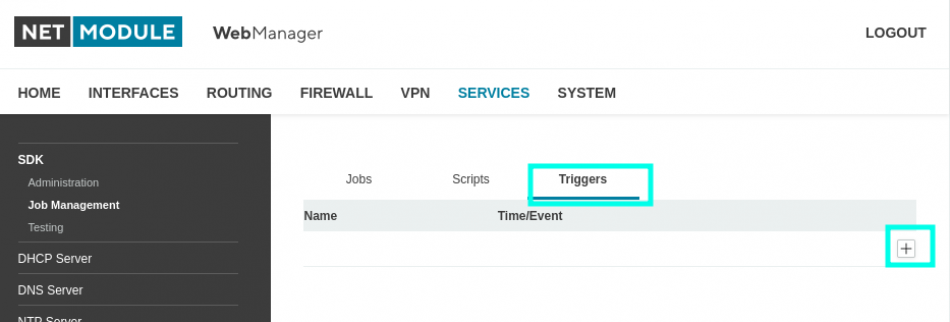
Here, too, pressing the plus button opens a new window with insertion options.
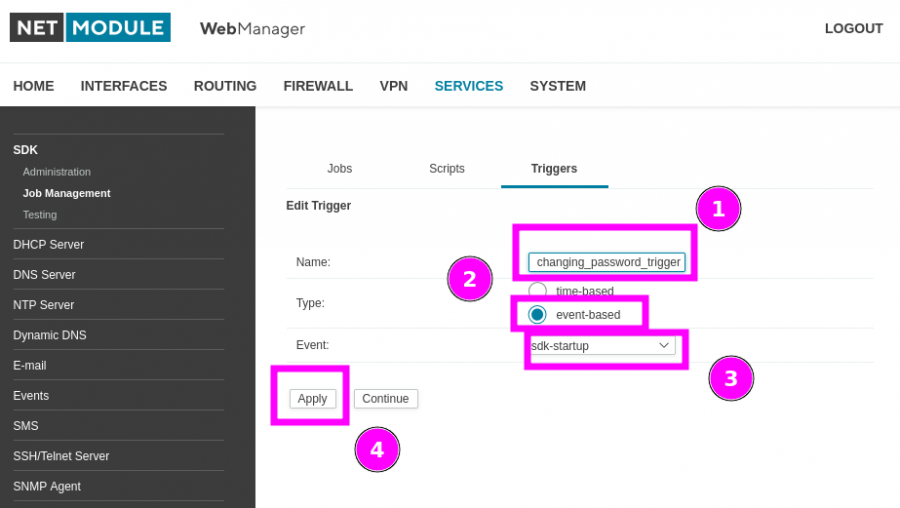
Again, start by assigning a name to the SDK process. Use the “event-based” option as the trigger type for this script. Select the “sdk-startup” event from the list. Why do we use these settings for the script? The script was created as an endless script. The commands are controlled and executed in the script. Errors are output and the program is then terminated. The event starts the script when the daemon of the SDK program is started by the router. This is also advantageous if the watchdog restarts the SDK daemon on the router. In this case, the script is also reactivated. The “Apply” button saves the changes back to the router.
In the last step, we activate the SDK script on the router.
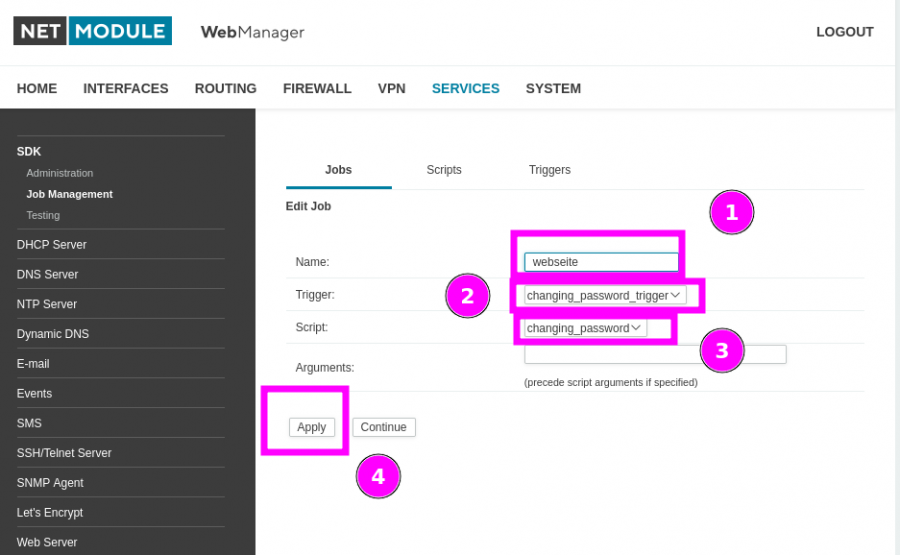
Again, enter the name for the SDK process first. If you want to activate the first SDK script on the router, the two fields “Trigger” and “Script” are already filled with the options you set up earlier. If you already have multiple scripts, you must select the correct option (Trigger and Script) from the pull-down menu. As before, click “Apply” to apply the setting to the router. In this case, the SDK script is also activated.
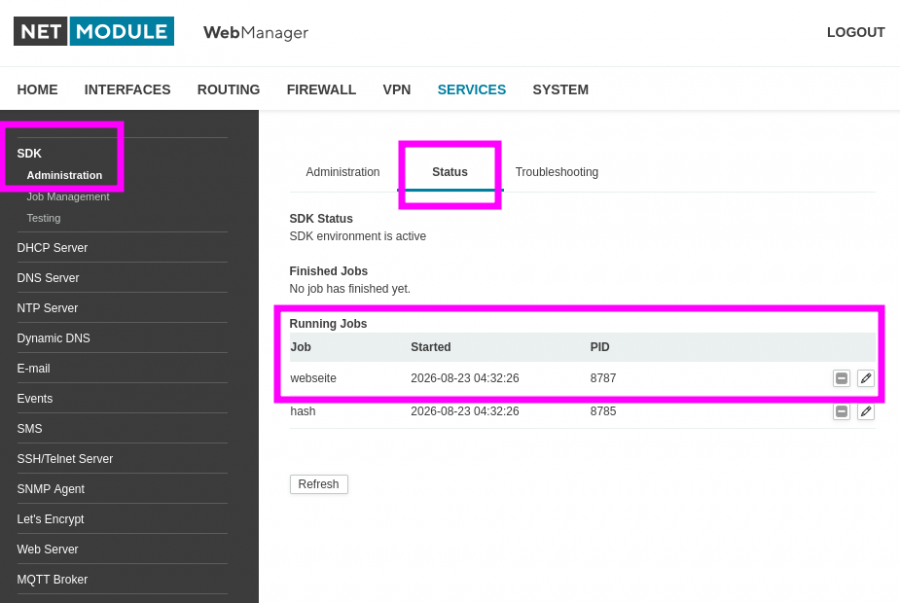
Using the Administration option under point 1, you can view information under the Status tab, point 2, to see whether the SDK script has started correctly and is running without errors.
Please do the same for the second script on the router.
The “cryptpw_and_config_set.are” script can be downloaded via the “show code” link.
show code
- cryptpw_and_config_set.are
string telnet(ip, port, user, password, cmd){
  if ((sock = socket(AF_INET, SOCK_STREAM, IPPROTO_TCP)) < 0) return NULL;
  if (connect(sock, ip, port) < 0) return NULL;
  try {
    if ((buf = recv(sock)) == NULL || strlen(buf) < 3) throw NULL;
    buf = explode(buf);
    if (buf[0] == "\xff") // is command
    {
      if (buf[1] == "\xfd" && buf[2] == "\d031") { //negotiate
        if (send(sock, "\d255\d251\d031") == -1) throw NULL;
        if (send(sock, "\d255\d250\d031\d000\d080\d000\d024\d255\d240") == -1) throw NULL;
      } else {
        for (i = 0; i < strlen(buf); i++)
          if (buf[i] == "\xfd") buf[i] = "\xfc";
          else if (buf[i] == "\xfb") buf[i] = "\xfd";
          if (send(sock, implode(buf)) == -1) throw NULL;
          }
    }
    if ((buf = recv(sock)) == NULL || strlen(buf) < 1) throw NULL; // user ?
    if (send(sock, strcat(user, "\r\n")) == -1) throw NULL;
    if ((buf = recv(sock)) == NULL || strlen(buf) < 1)throw NULL; // password ?
    if (send(sock, strcat(password, "\r\n")) == -1) throw NULL;
    while((s = select(sock, 1)) > 0 && (buf = recv(sock)) != NULL && strlen(buf) > 0)
      if (s == -1) throw NULL; //ignore all garbage
      if (send(sock, strcat(cmd, "\r\n")) == -1) throw NULL;  //send command
      rbuf ="";
    while((s = select(sock, 1)) > 0 && (buf = recv(sock)) != NULL && strlen(buf) > 0){
      if (s == -1) throw NULL;
      else rbuf = strcat(rbuf, buf); // collect return
    }
    rbuf = right(rbuf, strlen(rbuf) - strlen(cmd) - 2); //cut cmd
    if (pos = strrchr(rbuf, "\r"))
      rbuf = left(rbuf, pos);
    throw rbuf;
  } catch (ret) {
    close (sock);
    return ret;
  }
}

while(true){
 pass = strcat(nb_config_get("custom.var1"));
 if (pass != ''){
   command = strcat("cryptpw -m sha256 \x22", pass, "\x22");
   password = strcat(telnet("192.168.1.1", 65023, "root", "<admin_password>", command));
   sleep(1);
   for(;password == "";){
   password = strcat(telnet("192.168.1.1", 65023, "root", "<admin_password>", command));
   sleep(2);
   }
   daten = sprintf("user.%s.hash=%s",nb_config_get("custom.var0"),password);
   nb_config_set(daten);
   ret = nb_config_done();
   while (ret){
         printf("The config parameter set is in the execution: %s\n",ret);
         ret = nb_config_done();
         sleep(1);
   }
   # Store password unencrypted
         store_password = sprintf("user.%s.store_pw",nb_config_get("custom.var0"));
         save = nb_config_get(store_password);
         if(save == '1'){
           store_encrypt = sprintf("user.%s.password=%s",nb_config_get("custom.var0"),pass);
           nb_config_set(store_encrypt);
           ret = nb_config_done();
           while (ret){
                printf("The config parameter set two is in the execution: %s\n",ret);
                ret = nb_config_done();
                sleep(1);
           }
         }
   nb_config_set("custom.var0=");
   nb_config_set("custom.var1=");
   pass = '';
   daten = '';
   password = '';
   store_encrypt = '';
 }
 printf("Wait for two seconds\n");
 sleep(2);
}
2. Important settings in the SDK script
**
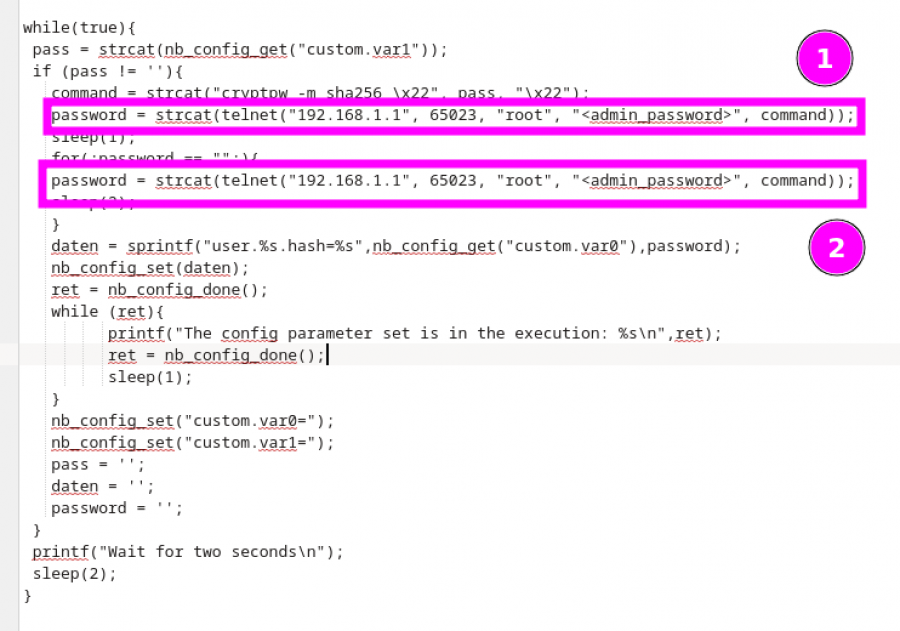
In the script cryptpw_and_config_set, the admin password still needs to be set.
**
Enter the password in these two fields.
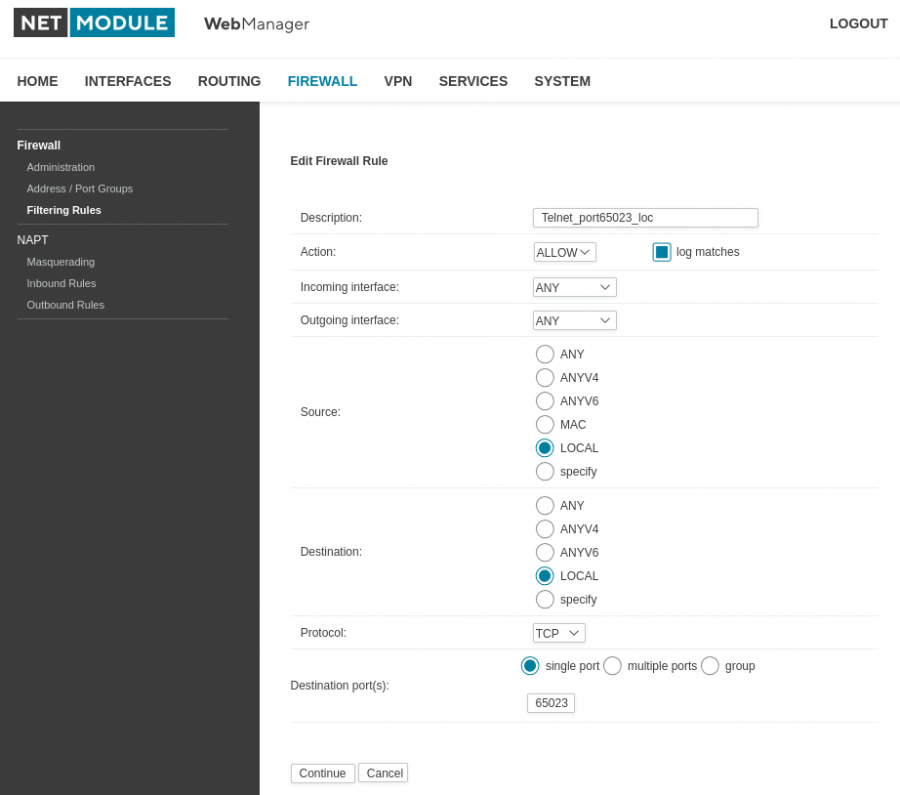
For the Telnet service, please set up a firewall rule so that the service can only be accessed locally.
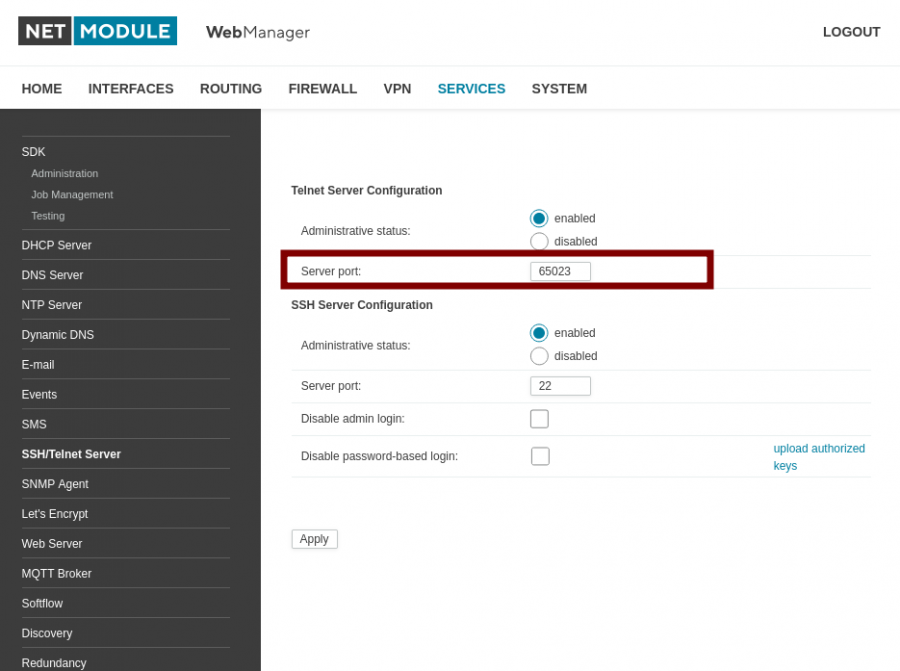
Change the Telnet port to port number 65023.
The website's layout
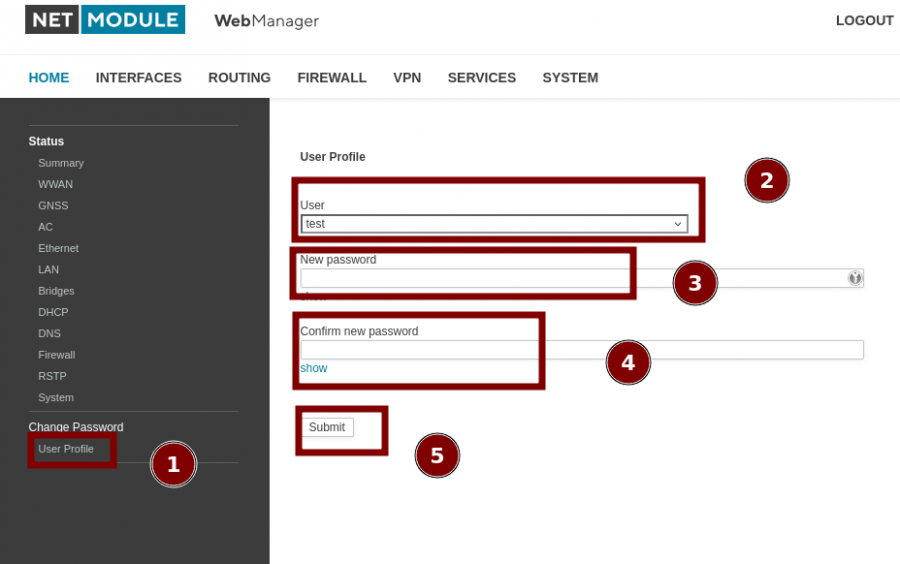
Once all scripts have been saved, the next menu item will appear under the Home tab. Under item 2 '', you can select users from the drop-down menu. For items ''3 and 4, you must enter a 10-digit password. Click the Submit button to execute the command.
The “web_changing_password.are” script.
show code
- web_changing_password.are
nb_config_set("custom.var0=");
nb_config_set("custom.var1=");

ID = 1;
if (is_void(page = nb_page_register(ID, "User Profile", "Change Password"))) exit(1);

template entry {
   name; configvar; value; text;

   int entry(string n, c, t) {
      this.name = n;
      this.configvar = c;
      this.value = nb_config_get(c);
      this.text = t;
      return 0;
   }
};

string summary_get(string summary, string key)
{
   pat = strcat(key, "=");

   s = strstr(summary, pat);
   if (is_void(s)) return "";

   // Trim after “key=”
   s = substr(s, strlen(pat));

   // Trim to the end of the line
   nl = strstr(s, "\n");
   if (is_void(nl)) return s;

   // Länge vor '\n' = strlen(s) - strlen(nl)
   return substr(s, 0, strlen(s) - strlen(nl));
}

fields = mkarray();
fields[i=0]  = new entry("user",     "custom.var0", "User");          // stores indices 0 through 19
fields[++i]  = new entry("password", "custom.var1", "New password");
fields[++i]  = new entry("confirm",  "custom.var2", "Confirm new password"); // is NOT saved

for (;;) {
   if (request = nb_page_request(page)) {

      // Get GET (POST is empty for you)
      params = struct_get(request, "GET");
      if (is_void(params)) params = struct_get(request, "get");
      if (is_void(params)) params = mkarray();

      // Check doSave (Position 1)
      doSave = 0;
      if (length(params) >= 2 && params[1].value == "1")
         doSave = 1;

      msg = "";
      msgColor = "black";

      if (doSave) {
         offset = length(params) - length(fields);
         if (offset < 0) offset = 0;

         // Transfer values from `params` to `fields` (in order)
         for (i = 0; i < length(fields); i++) {
            k = i + offset;
            if (k >= length(params)) break;
            fields[i].value = params[k].value;
         }

         // User Index Default if empty (also validated below)
         if (fields[0].value == "") fields[0].value = "0";

         // Password Rules
         pw  = fields[1].value;
         cpw = fields[2].value;

         if (strlen(pw) < 10) {
            msg = "Error: Password must be at least 10 characters.";
            msgColor = "red";

         } else if (pw != cpw) {
            msg = "Error: Password and Confirm do not match.";
            msgColor = "red";

         } else {
            // Save: username + password (DO NOT save confirmation)
            for (i = 0; i < length(fields); i++) {
               if (fields[i].name == "confirm") continue;

               cfg = strcat(fields[i].configvar, "=");
               cfg = strcat(cfg, fields[i].value);
               rc = nb_config_set(cfg);
            }

            msg = "Saved.";
            msgColor = "green";
         }
      }

      // ----- HTML -----
      nb_page_respond(page, "<form action='sdkPage.php' method='get'>");
      nb_page_respond(page, "<input type='hidden' name='id' value='%08X'>", ID);
      nb_page_respond(page, "<input type='hidden' name='doSave' value='1'>");

      if (msg != "") {
         nb_page_respond(page,
            "<div style='color:%s; font-weight:bold; margin-bottom:10px;'>%s</div>",
            msgColor, msg
         );
      }

      // ---------------------------
      // USER Pull-Down (DYNAMIC)
      // ---------------------------
      summary = nb_config_summary();

      users   = mkarray();   // Display name: user/test/...
      userIdx = mkarray();   // Index as a string: “0” through “19”
      j = 0;

      for (u = 0; u < 20; u++) {
         key = strcat("user.", u);
         key = strcat(key, ".name");

         uname =  nb_config_get(key);

         // Show only registered users
         if (uname != "") {
            users[j]   = uname;
            userIdx[j] = strcat("", u);   // Index als String
            j++;
         }
      }

      // Default/Validation: If empty or no longer available -> select the first available option
      if (length(users) > 0) {
         valid = 0;
         for (k = 0; k < length(userIdx); k++) {
            if (fields[0].value == userIdx[k]) { valid = 1; break; }
         }
         if (fields[0].value == "" || !valid)
            fields[0].value = userIdx[0];
      }
      nb_page_respond(page, "%s<br>", fields[0].text);
      nb_page_respond(page, "<select name='%s' style='width: 400px;'>", fields[0].name);

      if (length(users) == 0) {
         nb_page_respond(page, "<option value='' selected>(no users configured)</option>");
      } else {
         for (k = 0; k < length(users); k++) {
            if (fields[0].value == userIdx[k])
               nb_page_respond(page, "<option value='%s' selected>%s</option>", userIdx[k], users[k]);
            else
               nb_page_respond(page, "<option value='%s'>%s</option>", userIdx[k], users[k]);
         }
      }
      nb_page_respond(page, "</select><br><br>");

      // Do not pre-fill PASSWORD/CONFIRM
      nb_page_respond(page,
         "%s<br><input type='password' value='' name='%s' size='80'><br><br>",
         fields[1].text, fields[1].name
      );
      nb_page_respond(page,
         "%s<br><input type='password' value='' name='%s' size='80'><br><br>",
         fields[2].text, fields[2].name
      );
      nb_page_respond(page, "<input type='submit' value='Submit'></form>");
      nb_page_finish(page);
   }
}
The “cryptpw_and_config_set.are” script.
show code
- cryptpw_and_config_set.are
string telnet(ip, port, user, password, cmd){
  if ((sock = socket(AF_INET, SOCK_STREAM, IPPROTO_TCP)) < 0) return NULL;
  if (connect(sock, ip, port) < 0) return NULL;
  try {
    if ((buf = recv(sock)) == NULL || strlen(buf) < 3) throw NULL;
    buf = explode(buf);
    if (buf[0] == "\xff") // is command
    {
      if (buf[1] == "\xfd" && buf[2] == "\d031") { //negotiate
        if (send(sock, "\d255\d251\d031") == -1) throw NULL;
        if (send(sock, "\d255\d250\d031\d000\d080\d000\d024\d255\d240") == -1) throw NULL;
      } else {
        for (i = 0; i < strlen(buf); i++)
          if (buf[i] == "\xfd") buf[i] = "\xfc";
          else if (buf[i] == "\xfb") buf[i] = "\xfd";
          if (send(sock, implode(buf)) == -1) throw NULL;
          }
    }
    if ((buf = recv(sock)) == NULL || strlen(buf) < 1) throw NULL; // user ?
    if (send(sock, strcat(user, "\r\n")) == -1) throw NULL;
    if ((buf = recv(sock)) == NULL || strlen(buf) < 1)throw NULL; // password ?
    if (send(sock, strcat(password, "\r\n")) == -1) throw NULL;
    while((s = select(sock, 1)) > 0 && (buf = recv(sock)) != NULL && strlen(buf) > 0)
      if (s == -1) throw NULL; //ignore all garbage
      if (send(sock, strcat(cmd, "\r\n")) == -1) throw NULL;  //send command
      rbuf ="";
    while((s = select(sock, 1)) > 0 && (buf = recv(sock)) != NULL && strlen(buf) > 0){
      if (s == -1) throw NULL;
      else rbuf = strcat(rbuf, buf); // collect return
    }
    rbuf = right(rbuf, strlen(rbuf) - strlen(cmd) - 2); //cut cmd
    if (pos = strrchr(rbuf, "\r"))
      rbuf = left(rbuf, pos);
    throw rbuf;
  } catch (ret) {
    close (sock);
    return ret;
  }
}

while(true){
 pass = strcat(nb_config_get("custom.var1"));
 if (pass != ''){
   command = strcat("cryptpw -m sha256 \x22", pass, "\x22");
   password = strcat(telnet("192.168.1.1", 65023, "root", "<admin_password>", command));
   sleep(1);
   for(;password == "";){
   password = strcat(telnet("192.168.1.1", 65023, "root", "<admin_password>", command));
   sleep(2);
   }
   daten = sprintf("user.%s.hash=%s",nb_config_get("custom.var0"),password);
   nb_config_set(daten);
   ret = nb_config_done();
   while (ret){
         printf("The config parameter set is in the execution: %s\n",ret);
         ret = nb_config_done();
         sleep(1);
   }
   # Store password unencrypted
         store_password = sprintf("user.%s.store_pw",nb_config_get("custom.var0"));
         save = nb_config_get(store_password);
         if(save == '1'){
           store_encrypt = sprintf("user.%s.password=%s",nb_config_get("custom.var0"),pass);
           nb_config_set(store_encrypt);
           ret = nb_config_done();
           while (ret){
                printf("The config parameter set two is in the execution: %s\n",ret);
                ret = nb_config_done();
                sleep(1);
           }
         }
   nb_config_set("custom.var0=");
   nb_config_set("custom.var1=");
   pass = '';
   daten = '';
   password = '';
   store_encrypt = '';
 }
 printf("Wait for two seconds\n");
 sleep(2);
}
If you want to automatically reset passwords to a fixed default password, you can use these two scripts.
The script resets the stored user passwords to a default password every month.
The “Set_a_default_password_every_month.are” script.
show code
- Set_a_default_password_every_month.are
# The script resets the stored user passwords to a default password every month.

nb_config_set("custom.var4=admin12345");  # Set the default password here
last_run_month = "";

string telnet(ip, port, user, password, cmd)
{
  if ((sock = socket(AF_INET, SOCK_STREAM, IPPROTO_TCP)) < 0) return NULL;
  if (connect(sock, ip, port) < 0) return NULL;
  try {
    if ((buf = recv(sock)) == NULL || strlen(buf) < 3) throw NULL;
    buf = explode(buf);
    if (buf[0] == "\xff") // is command
    {
      if (buf[1] == "\xfd" && buf[2] == "\d031") { //negotiate
        if (send(sock, "\d255\d251\d031") == -1) throw NULL;
        if (send(sock, "\d255\d250\d031\d000\d080\d000\d024\d255\d240") == -1) throw NULL;
      } else {
        for (i = 0; i < strlen(buf); i++)
          if (buf[i] == "\xfd") buf[i] = "\xfc";
          else if (buf[i] == "\xfb") buf[i] = "\xfd";
          if (send(sock, implode(buf)) == -1) throw NULL;
          }
    }
    if ((buf = recv(sock)) == NULL || strlen(buf) < 1) throw NULL; // user ?
    if (send(sock, strcat(user, "\r\n")) == -1) throw NULL;
    if ((buf = recv(sock)) == NULL || strlen(buf) < 1)throw NULL; // password ?
    if (send(sock, strcat(password, "\r\n")) == -1) throw NULL;
    while((s = select(sock, 1)) > 0 && (buf = recv(sock)) != NULL && strlen(buf) > 0)
      if (s == -1) throw NULL; //ignore all garbage
      if (send(sock, strcat(cmd, "\r\n")) == -1) throw NULL;  //send command
      rbuf ="";
    while((s = select(sock, 1)) > 0 && (buf = recv(sock)) != NULL && strlen(buf) > 0){
      if (s == -1) throw NULL;
      else rbuf = strcat(rbuf, buf); // collect return
    }
    rbuf = right(rbuf, strlen(rbuf) - strlen(cmd) - 2); //cut cmd
    if (pos = strrchr(rbuf, "\r"))
      rbuf = left(rbuf, pos);
    throw rbuf;
  } catch (ret) {
    close (sock);
    return ret;
  }
}

while (true){
    now = time();
    dt  = localtime(now);
    /* Debug: Current Time */
    stamp = strftime("%Y-%m-%d %H:%M:%S", dt);
    printf("Time: %s\n", stamp);
    /* Day and Month as Strings */
    day_str   = strftime("%d", dt);     /* "01".."31" */
    month_str = strftime("%Y-%m", dt);  /* "YYYY-MM" */
    /* Debug: Status */
    printf("day=%s month=%s last=%s\n", day_str, month_str, last_run_month);
    /* Run exactly once on the 1st of the month */
    if (day_str == "01" && month_str != last_run_month) {
        pass = nb_config_get("custom.var4");
      if (pass != ''){
        command = strcat("cryptpw -m sha256 \x22", pass, "\x22");
        password = strcat(telnet("192.168.1.1", 65023, "root", "<admin-password>", command));
        sleep(1);
        for (;password == "";){
           password = strcat(telnet("192.168.1.1", 65023, "root", "<admin-password>", command));
           sleep(2);
        }
        for (i = 0; i < 20; i++){
          user_temp = nb_config_get(sprintf("user.%s.name",i));

           if(user_temp != ''){   // The loop runs through every user
                                  // who has been added to the system.
                                  // If you want to reset only a specific user,
                                  // you can do so by making this change
                                  // if(user_temp == “<username>”) {

           daten = sprintf("user.%s.hash=%s",i,password);
           nb_config_set(daten);
           ret = nb_config_done();
           while (ret){
                printf("The config parameter set is in the execution: %s\n",ret);
                ret = nb_config_done();
                sleep(1);
           }
         }
         # Store password unencrypted
         store_password = sprintf("user.%s.store_pw",i);
         save = nb_config_get(store_password);
         if(save == '1'){
           store_encrypt = sprintf("user.%s.password=%s",i,pass);
           nb_config_set(store_encrypt);
           ret = nb_config_done();
           while (ret){
                printf("The config parameter set two is in the execution: %s\n",ret);
                ret = nb_config_done();
                sleep(1);
           }
         }
        }
        last_run_month = month_str;
        printf("Monthly run set for: %s\n", last_run_month);
        pass = '';
        daten = '';
        password = '';
        store_encrypt = '';
      }
    }
 sleep(3600); # check once per hour
}
The script resets the stored user passwords to a default password every week.
The “Set_a_default_password_every_week.are” script.
show code
- Set_a_default_password_every_week.are
 # The script resets the stored user passwords to a default password every week.

pass = nb_config_set("custom.var4=admin12345");  # Set the default password here
last_run_week = "";

string telnet(ip, port, user, password, cmd)
{
  if ((sock = socket(AF_INET, SOCK_STREAM, IPPROTO_TCP)) < 0) return NULL;
  if (connect(sock, ip, port) < 0) return NULL;
  try {
    if ((buf = recv(sock)) == NULL || strlen(buf) < 3) throw NULL;
    buf = explode(buf);
    if (buf[0] == "\xff") // is command
    {
      if (buf[1] == "\xfd" && buf[2] == "\d031") { //negotiate
        if (send(sock, "\d255\d251\d031") == -1) throw NULL;
        if (send(sock, "\d255\d250\d031\d000\d080\d000\d024\d255\d240") == -1) throw NULL;
      } else {
        for (i = 0; i < strlen(buf); i++)
          if (buf[i] == "\xfd") buf[i] = "\xfc";
          else if (buf[i] == "\xfb") buf[i] = "\xfd";
          if (send(sock, implode(buf)) == -1) throw NULL;
          }
    }
    if ((buf = recv(sock)) == NULL || strlen(buf) < 1) throw NULL; // user ?
    if (send(sock, strcat(user, "\r\n")) == -1) throw NULL;
    if ((buf = recv(sock)) == NULL || strlen(buf) < 1)throw NULL; // password ?
    if (send(sock, strcat(password, "\r\n")) == -1) throw NULL;
    while((s = select(sock, 1)) > 0 && (buf = recv(sock)) != NULL && strlen(buf) > 0)
      if (s == -1) throw NULL; //ignore all garbage
      if (send(sock, strcat(cmd, "\r\n")) == -1) throw NULL;  //send command
      rbuf ="";
    while((s = select(sock, 1)) > 0 && (buf = recv(sock)) != NULL && strlen(buf) > 0){
      if (s == -1) throw NULL;
      else rbuf = strcat(rbuf, buf); // collect return
    }
    rbuf = right(rbuf, strlen(rbuf) - strlen(cmd) - 2); //cut cmd
    if (pos = strrchr(rbuf, "\r"))
      rbuf = left(rbuf, pos);
    throw rbuf;
  } catch (ret) {
    close (sock);
    return ret;
  }
}

while (true){
    now = time();
    dt  = localtime(now);
    /* Debug: Current Time */
    stamp = strftime("%Y-%m-%d %H:%M:%S", dt);
    printf("Time: %s\n", stamp);
    /* ISO week string (YYYY-WW) and weekday */
    week_str    = strftime("%G-%V", dt);  /* e.g. "2026-36" */
    weekday_str = strftime("%u", dt);     /* "1"=Mon ... "7"=Sun */
    /* Debug: Status */
    printf("weekday=%s week=%s last=%s\n", weekday_str, week_str, last_run_week);
    /* Run exactly once per week on Monday */
    if (weekday_str == "1" && week_str != last_run_week) {
        pass = nb_config_get("custom.var4");
      if (pass != ''){
        command = strcat("cryptpw -m sha256 \x22", pass, "\x22");
        password = strcat(telnet("192.168.1.1", 65023, "root", "<admin-password>", command));
        sleep(1);
        for (;password == "";){
           password = strcat(telnet("192.168.1.1", 65023, "root", "<admin-password>", command));
           sleep(2);
        }
        for (i = 0; i < 20; i++){
          user_temp = nb_config_get(sprintf("user.%s.name",i));

           if(user_temp != ''){   // The loop runs through every user
                                  // who has been added to the system.
                                  // If you want to reset only a specific user,
                                  // you can do so by making this change
                                  // if(user_temp == “<username>”) {


           daten = sprintf("user.%s.hash=%s",i,password);
           nb_config_set(daten);
           ret = nb_config_done();
           while (ret){
                printf("The config parameter set is in the execution: %s\n",ret);
                ret = nb_config_done();
                sleep(1);
           }
         }
         # Store password unencrypted
         store_password = sprintf("user.%s.store_pw",i);
         save = nb_config_get(store_password);
         if(save == '1'){
           store_encrypt = sprintf("user.%s.password=%s",i,pass);
           nb_config_set(store_encrypt);
           ret = nb_config_done();
           while (ret){
                printf("The config parameter set two is in the execution: %s\n",ret);
                ret = nb_config_done();
                sleep(1);
           }
         }
        }
        last_run_week = week_str;
        printf("Weekly run set for: %s\n", last_run_week);
        pass = '';
        daten = '';
        password = '';
        store_encrypt = '';
      }
    }
 sleep(3600); # check once per hour
}



